


THE VALIDATOR
A Brief Technical Introduction
The COUNTER Validator is a free, open-source tool designed to help publishers and libraries ensure their usage reports and COUNTER API (formerly sushi) setup comply with Release 5.1 of the Code of Practice. It also tests against Release 5. You can find it at https://validator.countermetrics.org/.

Introduction: Key Capabilities
Key capabilities of the free Validator include:
- Validating reports by uploading files in CSV, TSV, Excel, or JSON formats.
- Validating the COUNTER API, and validating reports via the COUNTER API, enabling direct connections to reporting servers to check data automatically.
- Advanced users can host their own instance of the Validator using Docker or by running the source code locally.
- Developers can integrate validation processes into their own systems, or automate testing workflows, via the RESTful API.
Jump To
- When To Use The Validator
- Validation Results
- Browser-Based Validations
- Automated Testing Through The Validator API
- Running The Validator Locally
- Find Out More
When To Use The Validator
Publishers
At a minimum, publishers and technology providers have to use the Validator as the first stage of the audit process. We recommend making validation a regular part of your workflow, either by integrating it into development quality assurance processes or by scheduling regular tests. We recommend testing reports and the COUNTER API once every four months at a minimum, and monthly where possible.
An Investigation might be an interaction with metadata (e.g. a book blurb or a video thumbnail), or use of a link such as one to inter-library loan.
Librarians
We encourage librarians to pass reports through the Validator if they think something looks peculiar, or when they are onboarding a new publisher’s reports.
If you find a problem, please share the Validator result with the publisher in the first instance. If the problem persists, please copy tasha@countermetrics.org into future emails.
Validation Results
The testing module of the Validator is set up to deliver specific validation messages for each issue that’s identified during a test. These messages are categorized by severity, from Fatal Error to Notice. As well as describing the categories here, we’ve included examples of common issues in each severity category, based on a two-week sample of validation results.
Fatal Error
The most serious of the Validator messages, fatal errors indicate that the testing module had to stop testing because it found an unrecoverable error. Fatal errors have to be fixed before the report can be validated, and they indicate an automatic audit fail. These are structural issues with files, or logical inconsistencies – for example, where requested values are missing from the report. For example, if Data_Type Book is requested, but the Report_Filters field in the header does not include Data_Type=Book.
The three most common fatal errors in our sampling set were:
- Mis-matches between Institution_ID in the report header, and the Customer_ID calling the report.An Investigation might be an interaction with metadata (e.g. a book blurb or a video thumbnail), or use of a link such as one to inter-library loan.
- Unsupported file extensions. This happens where someone tries to validate a file that isn’t appropriate for COUNTER, such as a PDF or Word file.
- “Buffer is not a JSON object or array”, which means that the Validator is expecting to see a JSON array or object, but something else was returned (e.g. an HTML page).
Critical Error
Critical errors suggest serious problems that would usually result in an audit fail. They are often formatting issues, such as when columns in a tabular report are in the wrong order, or values are left empty. The other type of critical error are data inconsistencies, for example missing data or a Book with more Unique_Title_Requests than Unique_Title_Investigations.
The three most common critical errors in our sampling set were:
- Improperly formatted JSON files:
- Missing Attribute_Performance property.
- Item_ID being reported as a JSON array instead of an object.
- Missing Data_Type property.
- Invalid Metric_Types, where someone has tried to include non-COUNTER metrics without properly namespacing them per the Extensions protocol.
- A Reporting_Period_Total that is either empty or does not match the sum of the month-by-month reporting.
Error
Errors are unlikely to prevent a library from ingesting the report into their internal systems, but they do still cause problems and must be fixed to pass an audit. Examples of errors include silly mistakes like a report name not matching a report identifier in the header, or failing to add a namespace to proprietary identifiers.
The three most common errors in our sampling set were:
- Properties being incorrectly applied or displayed:
- Data_Type being included in the Attributes_To_Show field in the Platform Report header. This was valid in R5, but because Data_Type is included by default in R5.1, it should no longer be included.
- Access_Method, Access_Type, or YOP being included in the report body, but not listed in the Attributes_To_Show in the report header.
- Missing namespaces. Some fields must be shown as {namespace}:{value}, such as Publisher_ID.
- Invalid identifiers. For example, a non-DOI being included in the DOI field of a Title Report.
Warning
We’re now at the point where the testing module is picking up things that should be checked, but which are not immediately concerning. Warnings cover everything from the presence of Data_Type Unspecified, which the Code says should only be used where there is not sufficient information to apply a more precise Data_Type, to missing Parent details in an Item Report. These are things that may be challenged in an audit, but are unlikely to result in failure.
The single most common warning is for incorrectly formatted ISBNs. Per our glossary:
“ISBN-13 MUST be formatted as follows: the string MUST include four hyphens, the first of which appears after the first three digits and the last of which appears before the last digit. There must be at least one digit between each of the four hyphens in the ISBN-13. ISBN-10 MUST NOT be used.”
Notice
Notices present additional information but will not affect the result of an audit. Notices commonly draw attention to Metric_Types which are valid for a report, but are not present. For example, a Title Report with no No_License counts will result in a notice from the Validator.
Browser-Based Validations
Once you’ve registered for a free Validator account, you’ll see a page which offers several options. The two key aspects are the buttons to validate a file, and to validate a COUNTER API response. Below that you’ll see a table of your validations (which will be populated once you start running them) and ways to filter that table.
What You Can Validate
You can upload a COUNTER report in any of CSV, TSV, Excel, or JSON file formats. As noted above, both R5.1 and R5 reports are supported. You can upload several files at the same time, with the option to add a plain-text note to each file. The Validator will test and present results for each file separately.
As well as files, you can validate a COUNTER API response by providing the URL of the API endpoint and the corresponding credentials. The Validator is hooked up to the COUNTER Registry, so when you select Validate API you’re able to pre-populate key fields before testing. The Validator will guide you through the process of selecting the endpoint, potential filters, etc. Once the validation is complete, the results will be displayed in the same way as when validating a file.
Viewing Validation Results
For the purposes of this guide, I validated
- The sample reports from the Code in tabular and JSON format.
- The open /status endpoints for a variety of publishers.
After running these validations, my dashboard is populated with a list of the tests I’ve run, as well as the validation results. The results remain available for a week from the date of validation.
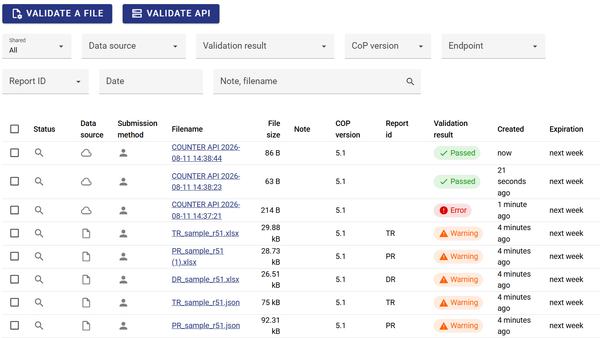
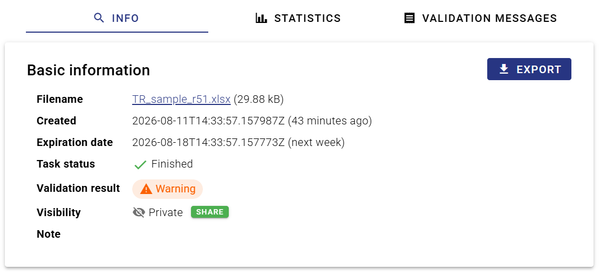
By clicking on the status icon (magnifying glass), I can jump through to see basic information about the validation, statistics, and the details of messages associated with the validation results.
The Information Page
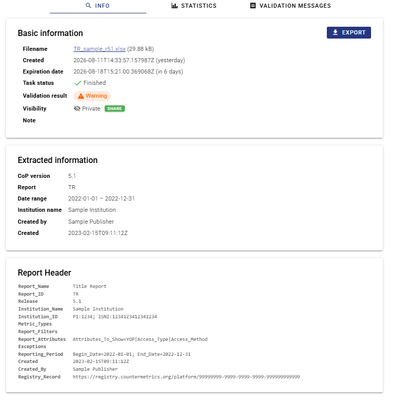
This is the landing page for a specific file or COUNTER API response validation. It starts at the top with basic metadata about the validation, including when it was run, the status of the validation task, what the results were, whether the results are visible, and any notes you have applied. Below that is the information the testing module extracted, such as which Release (CoP) is being tested. Lastly comes a rendering of the report header.
If you test a COUNTER API response instead of a file, you’ll see the same basic information, and then the details of the COUNTER API parameters that you requested. You’ll also see a Repeat Validation button. That will allow you to run another validation against the same server. It will set up a new validation with the same settings as the original one, which you can then modify as needed and run again.
The Statistics Page
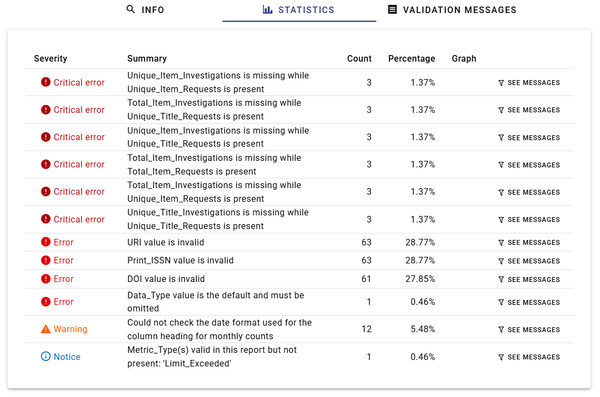
The second tab of the validation results is a summary of the various errors found during testing. This is an example of a live test run by a publisher getting ready for audit. It’s been included here because it’s anonymous! As you can see, there are six different types of critical error, four different types of errors, one warning and a notice. As well as the severity and summary for each issue, the statistics page also shows the number of each type of issue as well as the option to jump to the relevant validation messages.
Validation Messages
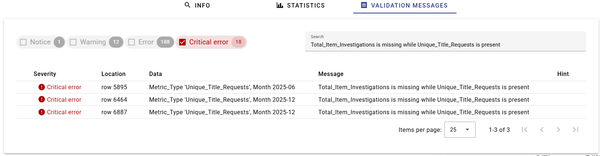
Clicking through from the statistics page to just one of the critical errors, we can see the specific location of each issue. In this instance, the file included Unique_Title_Requests without showing Total_Item_Investigations, which is inconsistent with the Code of Practice.
Sharing Validation Results
You have two choices for sharing your validation results from the browser: you can export them as a tabular file, or hit the Share button from the validation information page. By using the Share feature, you’ll create a unique read-only link to the results, excluding any private information like COUNTER API credentials. Shared results remain available for 30 days, giving you plenty of time to collaborate with colleagues or with COUNTER. You can also choose to Hide the results once you’ve shared them.
Automated Testing Through The Validator API
If you are using the Validator frequently, you might want to switch from browser-based validations to the Validator API. This guide is only a very simple summary: if you want to switch to automated testing, please review the full Validator documentation.
Start by generating an API key in your user profile. You can access that from Settings > API keys in the user interface. You’ll need the API key for every request you make to the Validator API
Using The API
Just as with browser-based validation, you can validate files and your COUNTER API setup.
- For file validation, submit your report files via a POST request to https://validator.countermetrics.org/api/v1/validations/validation/file/.
- Alternatively, validate reports directly from a COUNTER API endpoint by sending a POST request to https://validator.countermetrics.org/api/v1/validations/validation/counter-api/ with the necessary URL and credential parameters.
You can retrieve validation results using a GET request to https://validator.countermetrics.org/api/v1/validations/validation/{id}/. The results will include all the validation messages for that validation id, including all of the information that you’d see in the browser-based tool.
Running The Validator Locally
We recommend using the public instance at validator.countermetrics.org, but if you really want to run your own instance, we have you covered. We’ve assumed that if you are planning to run your own instance of the Validator, you have enough technical knowledge not to need a Friendly Guide. Instead, you should check out the full Validator documentation.
Find Out More
As well as the various Friendly Guides, Technical Introductions, and Deep Dives on our education pages, there is comprehensive Validator documentation covering automated testing and local validations. Our GitHub repository offers a way to submit change requests and raise issues, and it includes a change log. If you are validating regularly, keep an eye on the change logs for the Validator and its underlying testing module, as they will explain differences in the validation result for a single file before and after a change.
Acknowledgements
Thanks are due to the Code Team, who generously gave their time to review this guide.